The fastest way to quit all apps on your Mac
Close all runnings apps with one click or a keyboard shortcut. Fast, safe and clean.
Lifetime license, only $1.99 • 4.7/5 stars on App Store

Use Quit All Apps before starting a new project, presenting, streaming, recording or whenever you want a clean slate.
Features for quitting all apps
Quit All Apps is the smoothest way to quit all running apps on your Mac. Just click the icon in your menu bar, or use a keyboard shortcut, and all apps quit instantly.
One-click quit
Just click the menu bar icon in the top right corner to quit all apps immediately.
Press to quit
Use the keyboard shortcut ⌃ ⌥ ⌘ Q or add your custom shortcut to quit all apps.
Minimize all apps
Hide all open app windows in an instant without quitting the apps.
Exclude apps
Exclude apps to skip them entirely (or minimize them instead quitting).
Bulk quit apps
Select which apps to quit and which apps to keep running.
Keyboard shortcuts
Quit all apps, minimize all apps and edit settings with customizible shortcuts.
Customized experience
Change keyboard shortcuts, toggle one-click-quitting, hide the icon and more.
Safe quitting
No forced quitting for apps with unsaved changes with risk-free quitting.
Privacy first
No tracking, no ads, no shared information. Your data is in your hands.


What people say about Quit All Apps
This app makes my day easier. WondWonderful and I highly recommend it to everyoneng just ONE button press to mute everything is such a time saver for me. Wonderful and I highly recommend it to everyone!

Sara M, App Store
New features have been added to the app. The big one for me is the capability to exclude specified apps from quitting when Quit All Apps is run. The app now provides everything I want for a mass quit. It has become an indispensable utility for me!

Carpe Deo, App Store
Exclude app plus one-click function makes this perfect for my adhd overwhelm. I like this app. I end up with multiple browsers and pdfs etc open and sometimes I just want to start a new session. Excluding word means I don’t lose my actual writing. Thanks to the developer.
Meme H, App Store
This is one of my favourites, very simple, does exactly what it says and is super easy to use and setup. If you have a MacBook Neo you need this to clear some memory every now and then with one click or keyboard shortcut.
Esware G, App Store
This is exactly the app I wanted. Yes, there are shortcuts for the things it does, but this app is the perfect solution. Ideal for instantly regaining focus. I recommend it.
Olga R, App Store
The app does its job quickly and easily. A smooth solution that saves time, especially at work.

Philip T, App Store
It works great! Does exactly what is should! Makes closing all of my apps fast and easy!
Alan E, App Store
Great little convenience booster for a reasonable price!
Eddie V, App Store
Nice! Until now I used a script in Apple's Shortcuts. But it looks like the memory pressure of your app is a little lower. Like the 'Exclude Apps' and 'Minimize all Apps' features too. Downloaded!

Max G, Reddit
Great and awesome app! Thank you for your hard work.
Adyan, App Store
Excellent application and very good support.
Spyros A, App Store
Thanks for making this! Super useful. I've been looking for something exactly like this.
Tom, Reddit
Well done! Easy to install, worked perfectly. Many thanks!

Patrick L, Linkedin
Buy once, no subscriptions
Quit All Apps comes with a lifetime license, all updates included. No subscriptions, no renewals, no in-app purchases.
$1.99 / for life
- Lifetime access with updates and support
- Family sharing included for free
- Clean, lightweight and fast
- Regular updates and improvements
- Reviewed and approved by Apple
Frequently asked questions
Do you want to get in touch? Send an email to support@quitallapps.app
Getting started with Quit All Apps
How do I install Quit All Apps?
Download Quit All Apps from App Store and doubleclick the app icon. Follow the installation wizard, step by step. It's important that you give Quit All Apps permissions to control other apps in your Accessibility settings, otherwise the app can't quit other apps.
After finishing the installation wizard, you will see the Quit All Apps icon in the menu bar, on the top right of your screen. Installing Quit All Apps also enables the keyboard shortcommand ⌃ ⌥ ⌘ Q (Control + Option + Command + Q). No other actions are needed.
How do I quit all apps on Mac?
Quit All Apps offers three ways to instantly quit all apps:
- 1-click quit by clicking the menu bar icon in the top right area of the screen
Pro tip: Enable or disable 1-click quit in the app settings. 2-click quit is default, to prevent unintential quttings. - The keyboard shortcommand ⌃ ⌥ ⌘ Q (Control + Option + Command + Q)
Pro tip: You can edit all keyboard shortcuts in the app settings. - Bulk Quit is where you can quit multiple apps fast. Right-click the menu bar icon and click Bulk Quit... (or hit ⌃ ⌥ ⌘ B) to open the Bulk Quitting view. All running apps are selected by default. Deselect any apps that you don't want to quit, and click "Quit Selected Apps" to bulk quit the selected apps.
These are the fastest and most efficient ways to quit all apps on Mac.
Can I exclude apps from being quit?
Yes, there are two ways to exclude selected apps from quitting in Quit All Apps:
1. Exclude Apps from quitting
Click the menu bar icon and choose Bulk Quit... Click the + icon to exclude (whitelist) apps from ever being quit or minimized by Quit All Apps. This setting will stick until you remove the app from the exclude list.

Excluded will be greyed out in the Bulk Quit view.
Since version 1.6, you can also choose to minimize certain apps instead of quitting them, when running Quit All Apps.
2. Bulk Quit Apps
Click the menu bar icon and choose Bulk Quit... (or use the keyboard shortcut Control + Option + Command + B). All runnings apps are checked by default but you can easily deselect apps that should not be bulk quitted.

You can also bulk minimize apps from the Bulk Quit view.
How do I minimize some apps instead of quitting them?
Since version 1.6, you can go to Settings » Exclude, add an app to the Exclude list, then right-click it and choose Minimize instead of quitting.
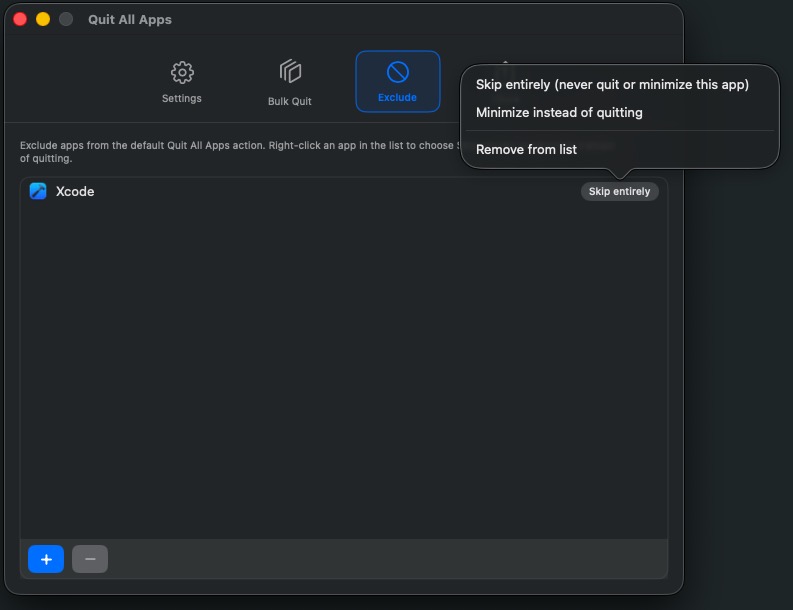
Use case: You might want to add your email app to the Exclude list and set it to minimize instead of quit. That way, when you run Quit All Apps, your inbox stays open in the background so you can keep receiving new emails, but the app is cleared from your workspace.
How do I enable or disable 1-click quit?
By default, the 1-click quit feature is disabeld in the app settings (to prevent accidental app closures).
Enable 1-click quitting
- Click the app menu bar icon
- Go to Settings
- Enable the toggle beside "Quit all apps immediately when clicking the menu bar icon"
From now on, left-clicking the menu bar icon will quit all apps. Right-click to access settings and other features.
How do I minimize (close) all apps on Mac?
Quit All Apps offers three ways to instantly minimize all apps (without quitting them):
- Click the menu bar icon in the top right area of the screen and click "Minimize All Apps"
- The keyboard shortcommand ⌃ ⌥ ⌘ M (Control + Option + Command + M)
Pro tip: Go to Settings to edit a shortcut. - Click the menu bar icon and go to Bulk Quit .Click "Minimize Selected Apps" to bulk minimize selected apps.
These are the fastest and most efficient ways to minimize all apps on Mac
Which keyboard shortcuts is available?
Quit All Apps unlocks four new keyboard shortcuts:
- Quit All Apps: ⌃ ⌥ ⌘ Q (Control + Option + Command + Q)
- Open Bulk Quit View: ⌃ ⌥ ⌘ B (Control + Option + Command + B)
- Minimize all apps: ⌃ ⌥ ⌘ M (Control + Option + Command + M)
- Open Settings View: ⌃ ⌥ ⌘ S (Control + Option + Command + S)
Since Quit All Apps version 1.4, you can edit all keyboard shortcuts to add your own custom shortcuts. Just go to the Settings view and click a shortcut to edit it.
Can keyboard shortcuts be customized?
Yes, since Quit All Apps version 1.4 you can edit all keyboard shortcuts to add your own custom shortcuts. Just go to the Settings view and click the shortcut to customize it.
You can also disable a keyboard shortcut if you don't want to use it.
Can I hide the menu bar icon?
Yes, if you just want to use the keyboard shortcuts, you can hide the menu bar icon. Click the menu bar icon and click Settings... (or hit ⌃ ⌥ ⌘ S). Now, just disable the toggle for "Display quit icon in the menu bar" to hide the icon.
Now you can use these keyboard shortcuts:
- Quit all apps: ⌃ ⌥ ⌘ Q
- Minimize all apps: ⌃ ⌥ ⌘ M
- Bulk quitting: ⌃ ⌥ ⌘ S
- Settings: ⌃ ⌥ ⌘ S
To reenable the menu bar icon, just hit ⌃ ⌥ ⌘ O and switch back the toggle for displaying the menu bar icon.
Troubleshooting and support
What happens if I have unsaved changes in an app?
The app asks to save, just like if you quit it yourself. Nothing is force-quit; you stay in control and can cancel per app if needed.
Do you collect any personal data?
No, Quit All Apps does not collect, store, or transmit any personal data.See our privacy policy for more details.
Why am I stuck in the installation wizard?
You need to add Quit All Apps in your Accessibility Settings. If you already done this and still see the message "No permission found...", please try to restart your computer and try again.
You could also try to manually add Quit All Apps in your Accessibility Settings:
My apps doesn't quit, how can I fix it?
If the app blinks but doesn’t close any apps, it’s usually due to missing or reset Accessibility permissions.
Please try removing the app from System Settings → Privacy & Security → Accessibility, then re-add it and make sure that the toggle is enabled.
Restart your computer if needed.
Allow accessibility apps to access your Mac
Some apps have specific features or shortcuts that could prevent quick quitting. Please send an email with the name of the app and your MacOS verrsion, and I'll do my best to support all available apps.
Is there a free version of Quit All Apps?
No, you can get your lifetime license for “Quit All Apps" for only $1.99 on App Store today. This includes all future updates and support.
Isn’t there already a way to quit all apps on Mac?
macOS doesn’t include a one-click “Quit All” button. You can force-quit apps or quit them individually, but there’s no simple, friendly way to close everything at once. Quit All Apps gives you that in a safe, tidy way.
Why are my web browser tabs open/closed after quitting?
Quit All Apps can't affect how web browsers handle tabs, but most browsers provide settings for this:
I have a feature request or a bug report, what should I do?
First, make sure you meet the minimum requirements (macOS 13 or later) and you’re on the latest version.
Then email support@quitallapps.app with a short description of what happened, your macOS version, and (if possible) a screenshot. Thanks!
Download Quit All Apps
The fastest way to quit all apps on your Mac.
A clean slate for both you and your computer.
Lifetime license, only $1.99